
Way to upgrade PHP5 to PHP7
Enter the following commands in the order shown:
sudo apt-get -y update
sudo add-apt-repository ppa:ondrej/php
sudo apt-get -y update
sudo apt-get install -y php7.0 libapache2-mod-php7.0 php7.0 php7.0-common php7.0-gd php7.0-mysql php7.0-mcrypt php7.0-curl php7.0-intl php7.0-xsl php7.0-mbstring php7.0-zip php7.0-bcmath php7.0-iconv
Enter the following command to verify PHP 7.0.2 installed properly:
php -v
Following is a sample response that indicates PHP 7.0.2 is installed:
PHP 7.0.8-2+deb.sury.org~trusty+1 (cli) ( NTS )
Copyright (c) 1997-2016 The PHP Group
Zend Engine v3.0.0, Copyright (c) 1998-2016 Zend Technologies
with Zend OPcache v7.0.8-2+deb.sury.org~trusty+1, Copyright (c) 1999-2016, by Zend Technologies
Find PHP configuration files
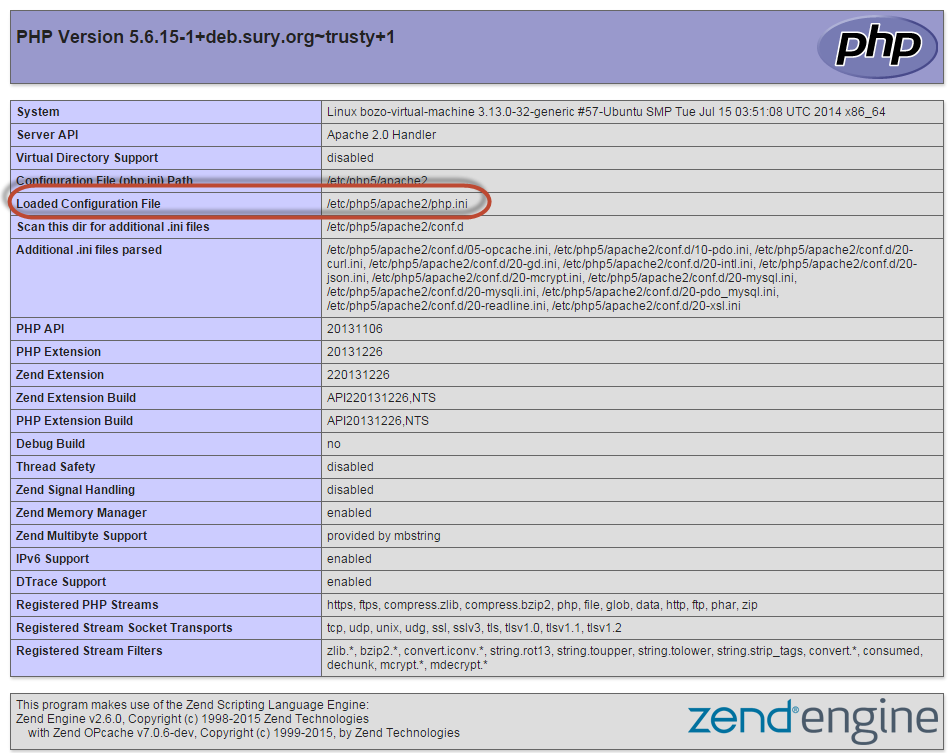
To find the web server configuration, run a phpinfo.php file in your web browser and look for the Loaded Configuration File as follows:
1. Make sure you remove any traces of php/php5
Open a terminal Ctrl+Alt+T and:
cd /etc/apache2/mods-enabled
ls -la
The output should not contain any php5.conf or php5.load, but if it does, do the following:
# this is the proper way of disabling modules
sudo a2dismod php5
# run this only if the above command didn’t remove the php5 sym-links
sudo rm php5.load
sudo rm php5.conf
Now add the php7.0.conf and php7.0.load instead:
# this is the proper way of enabling modules
sudo a2enmod php7.0
# run this only if the above command didn’t create the php7.0 sym-links
sudo ln -s php7.0.conf ../mods-available/php7.0.conf
sudo ln -s php7.0.load ../mods-available/php7.0.load
The output of ls -la php* should look like this:
lrwxrwxrwx 1 root root 29 Apr 15 03:55 php7.0.conf -> ../mods-available/php7.0.conf
lrwxrwxrwx 1 root root 29 Apr 15 03:55 php7.0.load -> ../mods-available/php7.0.load
After dealing with the modules we now come to the /etc/apache2/conf-enabled directory. Remove any traces of php/php5 here as well by sudo rm
Then, if needed do:
# the proper way of enabling configs
sudo a2enconf php7.0-cgi
sudo a2enconf php7.0-fpm
# do those commands only if the above didn’t work out
sudo ln -s php7.0-cgi.conf ../conf-available/php7.0-cgi.conf
sudo ln -s php7.0-fpm.conf ../conf-available/php7.0-fpm.conf
The output of ls -la php* should look like this:
lrwxrwxrwx 1 root root 33 Apr 21 17:00 php7.0-cgi.conf -> ../conf-available/php7.0-cgi.conf
lrwxrwxrwx 1 root root 33 Apr 21 17:01 php7.0-fpm.conf -> ../conf-available/php7.0-fpm.conf
2. Restarting Apache2
Before restarting Apache make sure to clean out the Apache error.log then restart:
sudo su
> /var/log/apache2/error.log
exit
sudo service apache2 restart
Leave a Reply
Want to join the discussion?Feel free to contribute!